
Blog
The Ultimate MacBook Clamshell Mode Guide for a Minimalist Desk in 2026

In a rush? Here’s the essence.
- Connect the Essentials: Your MacBook must be connected to a power source, an external display, and your external keyboard and mouse.
- Activate with a Close: Once connected, simply closing the lid engages clamshell mode, transferring primary control to your external setup.
- Elevate for Performance: Use a vertical stand to maximise desk space, promote critical airflow, and create a single, focused workstation.
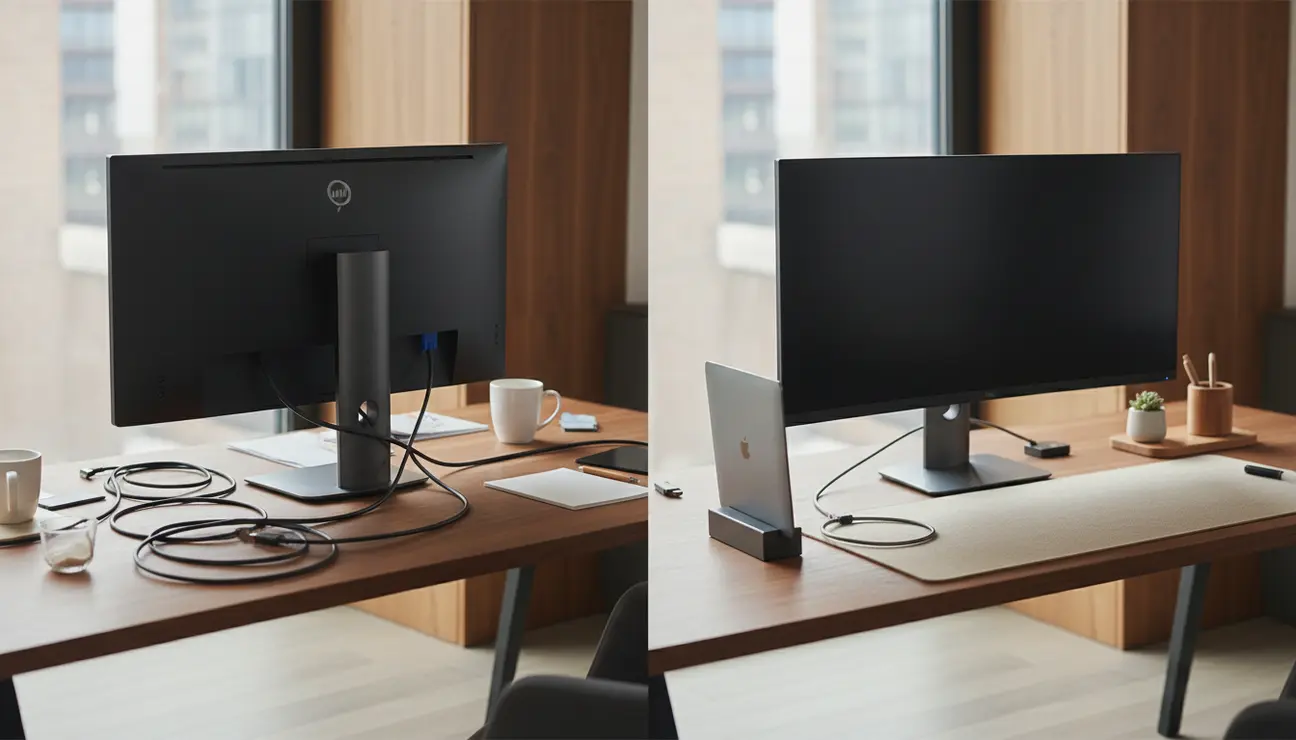
Look at the typical desk. On one side, an open MacBook competes for space and attention next to a larger monitor. Cables weave across the surface, creating a map of visual noise. This is the friction that fragments focus.
Now, imagine a different state. A single, expansive screen at the centre of your workspace. Your MacBook, the quiet engine powering it all, is tucked away elegantly. This is the promise of a proper MacBook clamshell mode setup: a path from digital and physical clutter to a serene, powerful, and organised command centre.
This guide is curated for creators, software engineers, and remote professionals who understand that their environment is a tool. It is for those who wish to reclaim valuable desk space, minimise visual distractions, and build a more ergonomic and efficient MacBook clamshell mode setup.
If you value precision, order, and calm, you are in the right place.
The Path to Your Perfect MacBook Clamshell Mode Setup
Achieving the perfect clamshell setup is a logical sequence. Each step builds upon the last, ensuring that both high performance and minimalist aesthetics are addressed with equal importance. By following this process, you are not just connecting devices; you are intentionally designing your ideal workspace.
Step 1: Your Equipment Checklist
This is the foundational stage. Each piece of hardware is a non-negotiable component for a stable and seamless clamshell experience.
- A Compatible MacBook: Any MacBook with a USB-C or Thunderbolt port is built for this. These ports handle power, data, and video simultaneously.
- A Power Adapter: Clamshell mode requires a constant power source. Using your MacBook’s supplied adapter, or one with sufficient wattage, is essential.
- An External Monitor: We recommend a display with a direct USB-C or Thunderbolt connection. This allows a single cable to transmit video and power your MacBook, achieving the ultimate minimalist setup.
- An External Keyboard and Mouse: With the MacBook’s lid closed, you need external input devices. Choose tools that feel right in your hands; they are your primary connection to your work.
Eliminate Cable Chaos?
The right tools can hide cables and chargers, creating a clean, distraction-free workspace.
Step 2: The Core Connection Sequence

Order is important. Following this sequence ensures your MacBook hands over control to your external display smoothly and without issue.
1. Connect to Power: First, connect your MacBook to its power adapter and ensure it is charging. This is the critical first signal that prepares the system for clamshell mode.
2. Connect the Display: Attach the external monitor cable to your MacBook. Your desktop should appear on the external screen.
3. Connect Peripherals: Connect your external keyboard and mouse via Bluetooth or a wired connection.
4. Verify and Close: Move your mouse and type a few characters to confirm the external devices are in control. Now, you can close the MacBook’s lid. The system will transition flawlessly, leaving your external monitor as the sole display.
For the most reliable connection, plug your power adapter and monitor directly into the MacBook’s ports, rather than through a multi-port hub, unless the hub is specifically designed to deliver sufficient power.
Step 3: Elevate and Organise with a Vertical Stand
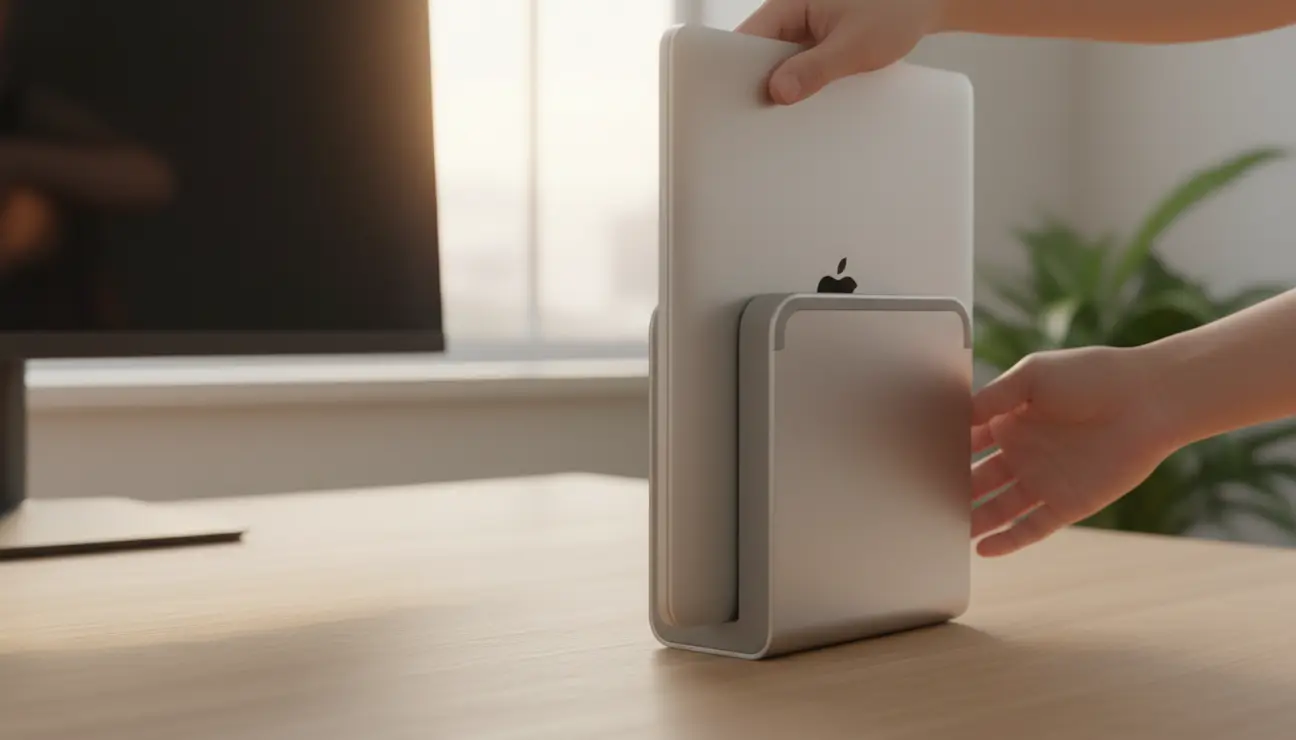
This is where the workspace is truly transformed. An open laptop consumes over 600cm² of prime desk real estate. A vertical stand is not merely an accessory; it is an essential component for reclaiming that space and optimising your machine.
The Zentic Vertical Laptop Stand is the piece we selected for this purpose. Milled from a single block of aluminium, its weight (over 650g) provides a solid, unmoving anchor for your expensive hardware. The precision-cut channel, lined with a soft, protective silicone, grips the MacBook securely.
Its functional benefits are clear:
- Space Reclamation: It reduces the MacBook’s footprint to a mere fraction of its open size, creating a cleaner, more expansive work surface.
- Enhanced Cooling: When a MacBook runs intensive tasks, its aluminium chassis dissipates heat. The vertical orientation exposes the maximum surface area to ambient air, facilitating natural convection and improving thermal performance.
- Integrated Organisation: The stand serves as a central hub. Cables for power and display can be routed neatly behind it, turning a point of clutter into one of control. The matte finish feels cool to the touch, a sensory reminder of the calm efficiency it brings to your desk.
Step 4: Fine-Tuning macOS for Your MacBook Clamshell Mode Setup
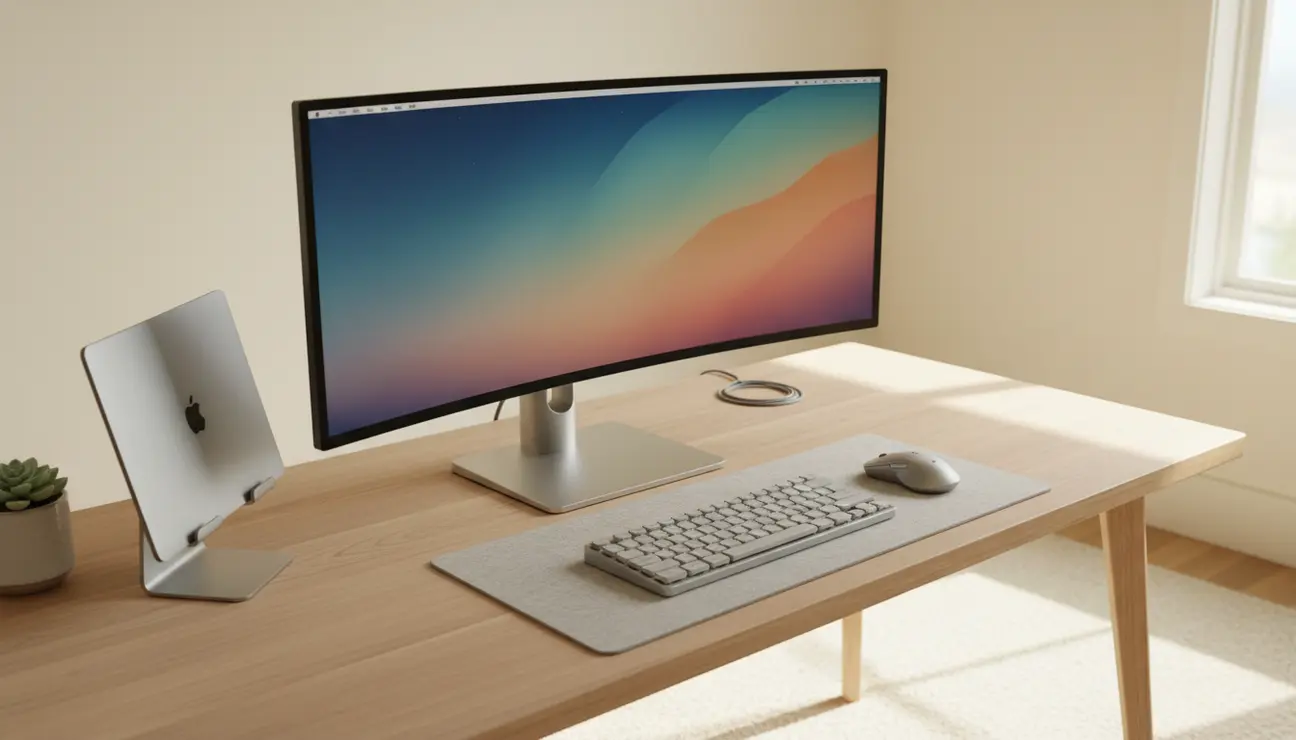
Your hardware is now perfectly arranged. The final step is to instruct macOS on how to behave in this new, streamlined configuration.
Navigate to System Settings.
1. Display Arrangement: Under the `Displays` menu, you can manage your screen. If macOS still sees two displays, you can ensure the external monitor is set as the main display. This is also where you will select the optimal resolution and scaling for your monitor.
2. Energy Settings: Go to `Battery` settings. Here, you can adjust options for when the power adapter is connected. It’s wise to set `Prevent computer from sleeping automatically when the display is off` to ensure background tasks or downloads continue uninterrupted.
Take a moment to appreciate the intentionality of this setup. Every element has a purpose. There is no excess. This is a workspace designed for deep focus, not distraction.
Your Newfound Clarity
You have successfully transitioned from a fragmented, cluttered desk to a single, powerful command centre. Your focus is no longer split between two screens or navigated around a web of cables. The mental energy once spent on managing clutter is now reclaimed for creative and analytical thought.
With your new MacBook clamshell mode setup, your desk is now an asset to your productivity, not a distraction from it.
Common Questions, Answered.
1. Will my MacBook overheat in clamshell mode?
This is a valid concern. MacBooks are designed to operate safely in this mode. However, for demanding tasks like video rendering or code compilation, heat management is key. The Zentic Vertical Laptop Stand directly addresses this by elevating the device and maximising its exposure to cool air, allowing it to dissipate heat far more effectively than if it were lying flat on the desk.
2. What happens if I disconnect the power?
If you unplug the power adapter while in clamshell mode, your MacBook will go to sleep. This is a built-in safety measure to preserve battery life. To continue working, you would need to open the lid. The setup is designed for a docked, stationary workflow.
3. Can I use any USB-C hub for this setup?
While many hubs will work, their quality varies significantly. For a stable clamshell setup, it is crucial to invest in a hub that provides sufficient ‘Power Delivery’ (PD). Cheaper hubs may not supply enough wattage to charge your MacBook under load, leading to an unstable connection or battery drain. We always recommend connecting power and your primary display directly to the MacBook when possible.
Build Your Command Center
You’ve mastered the principles. Now, select the final pieces for your perfect, minimalist workstation.
