
Blog
The Minimalist’s Guide to a Flawless Thunderbolt Dock Setup in 2026

In a rush? Here’s the essence:
- Audit Before Action: A methodical inventory of your devices and their power requirements is the blueprint for a seamless, single-cable connection.
- Sequence is Critical: Connect peripherals to the dock *before* connecting the dock to your laptop to prevent handshake errors and ensure stability.
- The Right Tool Matters: A high-quality, purpose-built dock is the heart of a serene workspace, delivering power, data, and video through one clean connection.
From Cable Chaos to Focused Calm
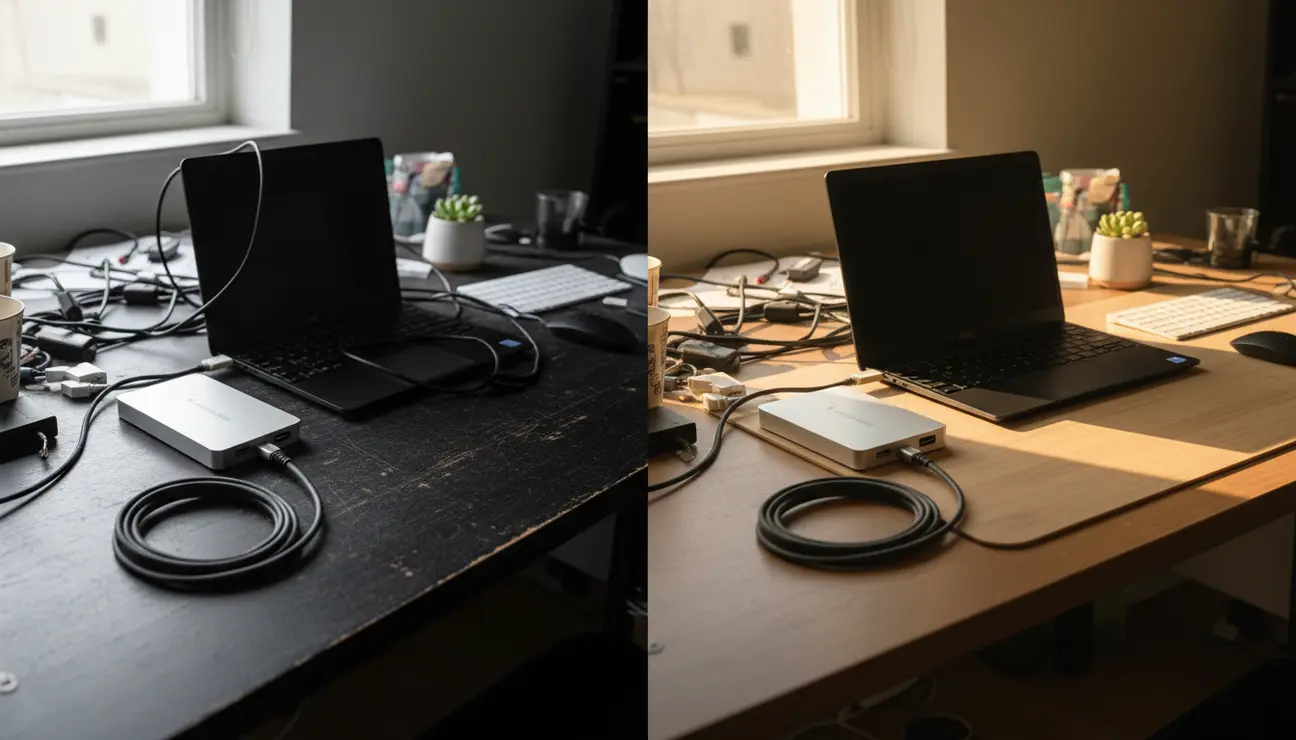
Consider the typical workspace. It often resembles a spaghetti junction of cables—power bricks, display adapters, USB dongles. This visual noise creates mental friction, a constant, low-level distraction that pulls at your focus.
Now, imagine a different state. A workspace where a single, elegant cable provides power, connects dual displays, and links all your peripherals. This is not just about aesthetics; it is about creating an environment of effortless efficiency. This guide provides the methodical process for the perfect Thunderbolt dock setup, transforming your desk and your mind.
Is This Thunderbolt Dock Setup Guide for You?
This guide is for remote professionals, developers, and creators who believe a tidy workspace is a productive workspace. It is for those who understand that efficiency is born from order.
If you are tired of plugging and unplugging multiple cables, dealing with visual clutter, and want a single, powerful solution to connect your entire setup, you are in the right place.
Optimize Your Command Center?
The right organizers for your cables, chargers, and adapters are essential for a truly clean setup.
Step 1: Audit Your Peripherals for a Clean Blueprint
Preparation prevents problems. Before connecting anything, a complete audit of your devices is the first logical step. This removes guesswork and ensures your Thunderbolt dock setup is built on a solid foundation.
1. List every device: Document each peripheral you intend to connect. Note your monitors’ exact resolution and refresh rates (e.g., 4K @ 60Hz), keyboard, mouse, webcam, and external drives.
2. Note connection types: Identify the port each device uses. Is it HDMI 2.1, DisplayPort 1.4, USB-C, or USB-A? This data is crucial for port allocation.
3. Calculate power requirements: Check your laptop’s power adapter. It will specify the required wattage for stable charging under load, typically between 65W and 100W for professional models.
A data-driven approach acts as a blueprint, ensuring perfect Thunderbolt 4 dock compatibility from the start. We recommend creating a simple spreadsheet to map your devices to the required ports.
Step 2: Position Your Hub at the Centre of Your Digital World

The physical placement of your dock is as important as its technical specifications. Strategic positioning is the key to effective cable management for your desk setup and long-term ergonomic comfort.
Place the dock where it can serve as a central, unseen hub. Often, this is behind a monitor or mounted discreetly to the underside of the desk. This allows cables to be routed away from your primary work area, eliminating visual clutter.
Ensure the location has adequate ventilation to maintain optimal operating temperatures. Finally, check that your peripheral cables are long enough to reach the dock without creating tension, which can damage ports over time.
Step 3: The Connection Sequence for a Flawless Thunderbolt Dock Setup
Device handshake issues are the most common point of failure in a complex setup. A precise connection order mitigates these risks entirely. Follow this sequence for a flawless integration every time.
1. Power On the Dock: Connect the dock’s own power adapter to the wall socket and then to the dock itself. Allow it a moment to initialise.
2. Connect All Peripherals: One by one, connect your monitors, keyboard, mouse, Ethernet cable, and any other USB devices directly to the dock.
3. The Final Link: Only when everything else is connected and seated firmly, connect the single Thunderbolt cable from the dock to your laptop.
This methodical approach ensures the dock establishes stable connections with each peripheral before it communicates with your computer, creating a stable and reliable system.
The Hero Solution: Why the Zentic Pro Dock Excels
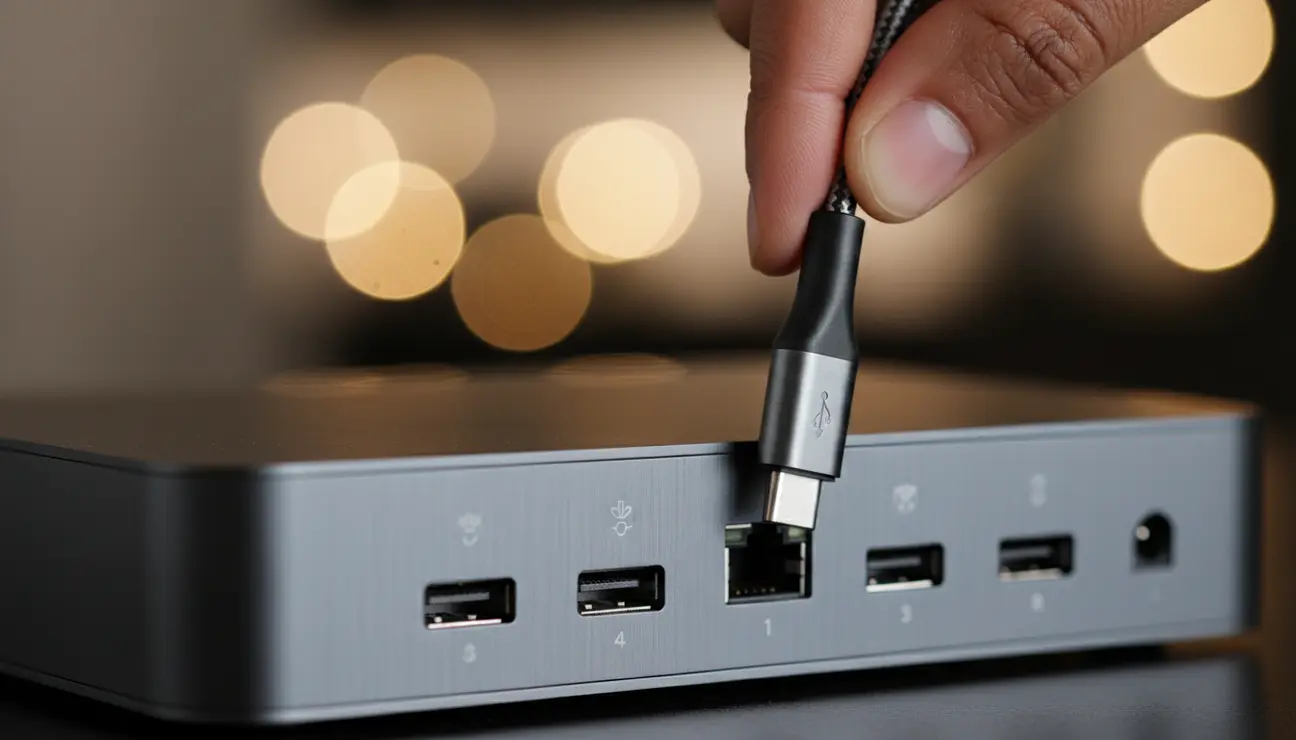
The process defines the requirement; the tool delivers the result. We curated the Zentic Pro Thunderbolt 4 Dock as the specific, engineered solution for a minimalist setup. It is not merely a hub, but the foundation for a focused workspace.
- Single-Cable Serenity: Delivers a consistent 98W of power to your laptop, more than enough for even the most demanding creative workflows, while simultaneously handling all your data and video needs.
- Future-Proof Connectivity: Equipped with dual DisplayPort 1.4 for two 4K 60Hz displays, high-speed USB-A ports, a 2.5 Gigabit Ethernet port, and multiple Thunderbolt 4 downstream ports for unparalleled performance.
- Minimalist Aesthetics: The chassis is precision-milled from a single block of aluminium, with a bead-blasted, anodised finish. Its compact footprint (19cm x 7cm) and matte texture are designed to complement, not dominate, your workspace.
- Flawless Performance: Stable, enterprise-grade drivers prevent the screen flicker and peripheral dropouts common in lesser solutions. The satisfying, firm click of a cable locking into place is a testament to its build quality.
Step 4: Fine-Tuning Your Displays and Drivers
With the physical setup complete, the final step is software configuration. This ensures your system is leveraging the full capability of your hardware.
In your operating system’s display settings (System Settings in macOS or Display Settings in Windows), arrange your monitors to match their physical layout on your desk. Select the correct native resolution and ensure the highest possible refresh rate is enabled for smooth visuals.
While most docks work out of the box, it is good practice to check for firmware updates. A quick visit to the manufacturer’s support page can provide stability and performance enhancements that ensure your setup remains flawless for years to come.
Your Newfound Focus
You have now transformed your workspace. The previous tangle of wires has been replaced by a clean, streamlined command centre. The result is more than just a tidy desk; it is the reclamation of mental bandwidth.
Your tools now serve you, not distract you. By removing the physical and mental clutter, you create an environment where deep work can flourish. Your new Thunderbolt dock setup is a reflection of your mindset—keep it clean, simple, and powerful.
Frequently Asked Questions
Will a Thunderbolt dock slow down my internet connection?
No, quite the opposite. The Zentic Pro Dock includes a 2.5 Gigabit Ethernet port. This provides a wired connection that is significantly faster and more stable than Wi-Fi, eliminating concerns about network latency or dropouts during critical tasks.
My second monitor is flickering. What’s the most common cause?
Flickering is almost always caused by one of two things: a low-quality display cable or a dock that cannot handle the required data bandwidth. Ensure you are using certified DisplayPort 1.4 or HDMI 2.1 cables. If the problem persists, it indicates the dock itself is the bottleneck, which is why investing in a premium, high-bandwidth solution is critical.
Can I use a Thunderbolt 4 dock with a Thunderbolt 3 laptop?
Yes. The Thunderbolt standard is backwards-compatible. You can connect a Thunderbolt 4 dock to a Thunderbolt 3 laptop and it will function perfectly, though it will be limited to the maximum performance capabilities of the Thunderbolt 3 specification. This makes a Thunderbolt 4 dock a smart, future-proof investment.
Ready to Eliminate Chaos?
A flawless setup requires the right foundation. Find the essential accessories that power your productivity and complete your minimalist workspace.
